Google Service Accounts
Second uses a Google Sheet for member lists, status tracking, and log keeping. Second requires a Service Account to authenticate with Google. This guide will walk you through the steps for setting up a service account with access to the Google Sheets API.
Creating a Google Cloud Project
For the Attendance Tracker to be able to talk to Google then the Google Sheet needs to be associated with a Google Project.
To create a project go to https://console.cloud.google.com/projectselector2/.
Click “Create Project”
On the next window, for the Project Name use “Attendance Tracking”.
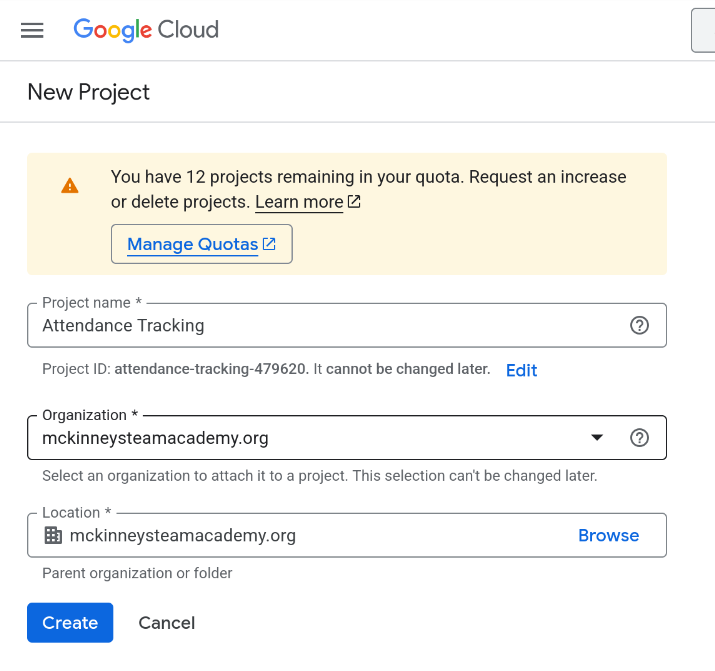
Click “Create”.
Next you should see a “welcome” screen and indicate “You’re working in Attendance Tracking”.
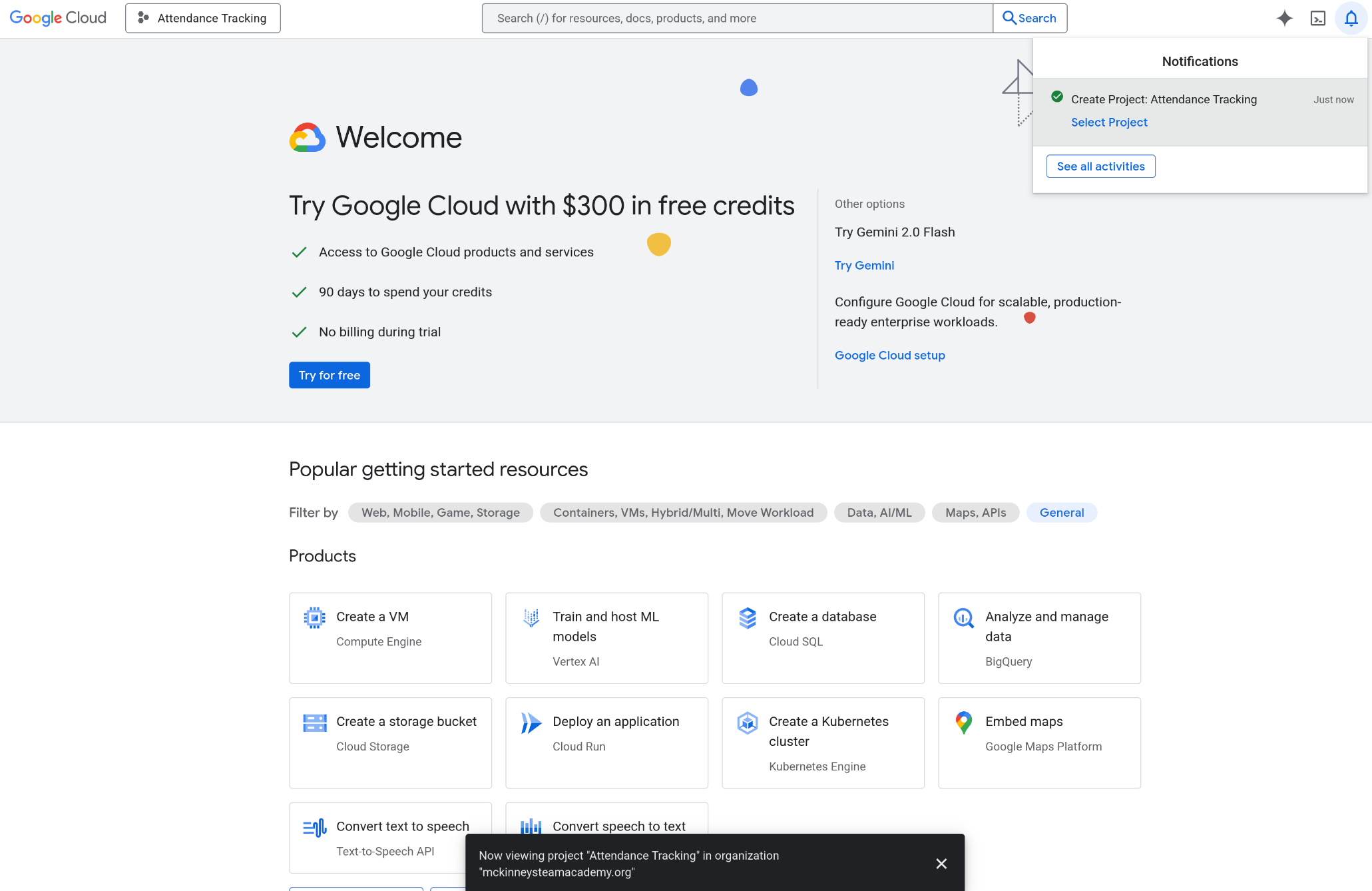
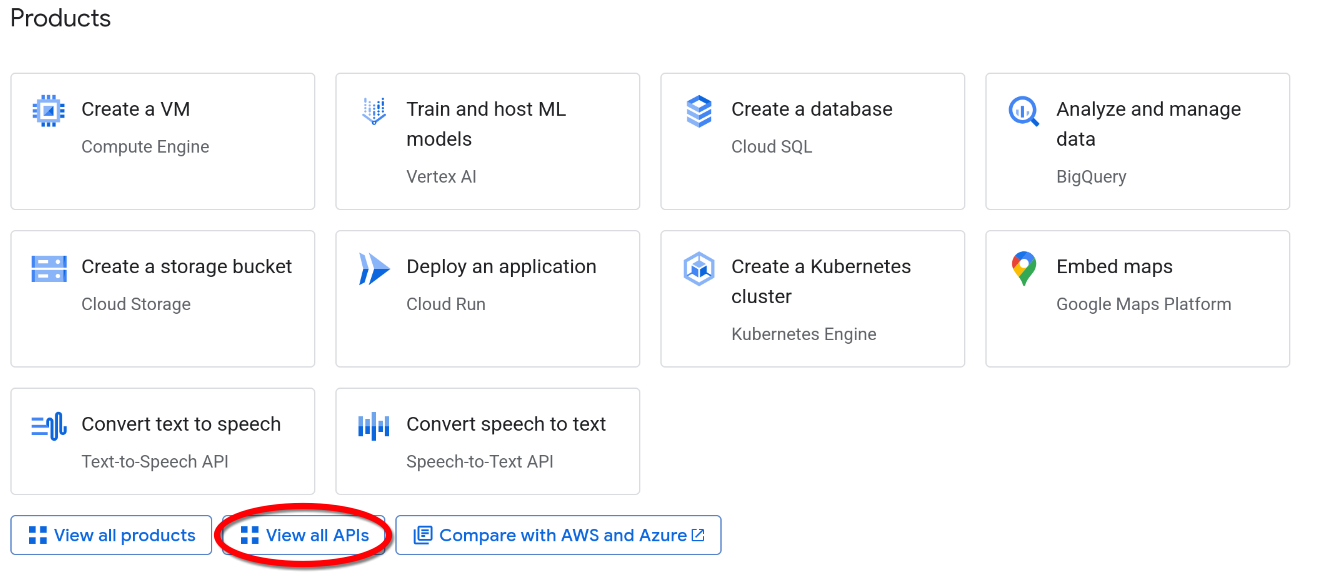
Adding the Google Sheets API
Click “View all APIs”
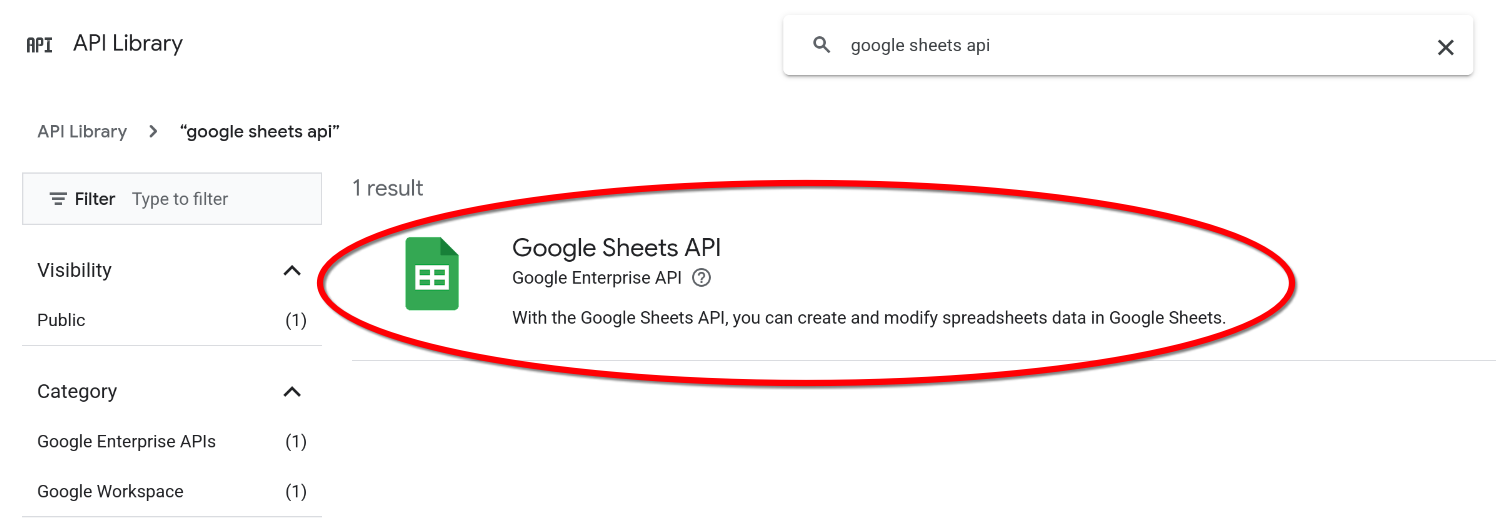
Search and Select “Google Sheets API”
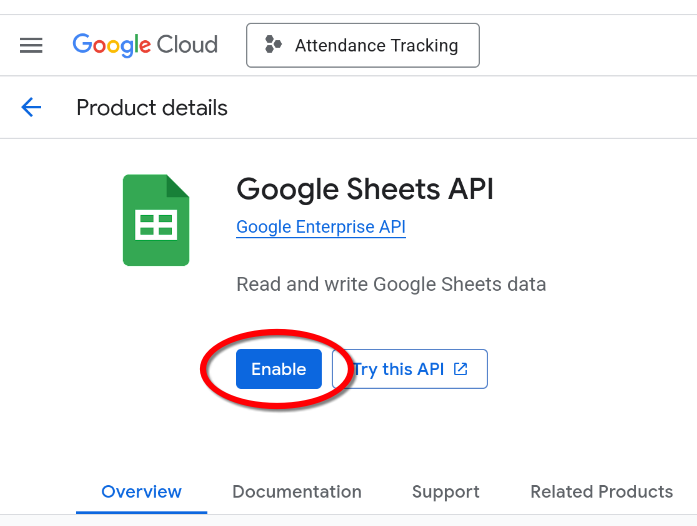
Click “Enable” under the API
Creating the Service Account
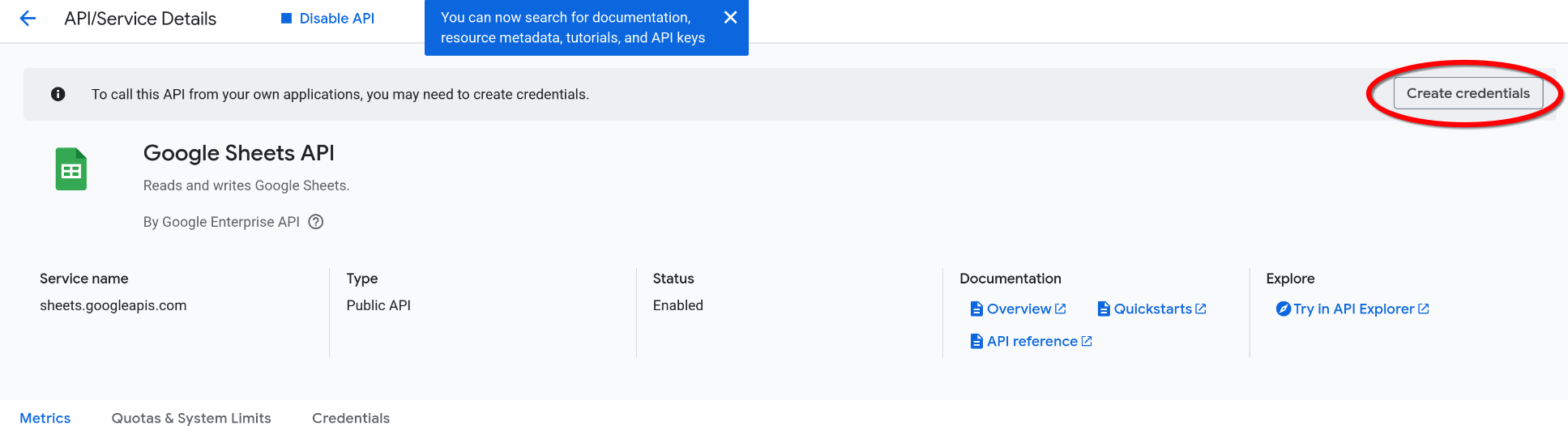
Once the API is enabled, you should be redirected to the “APIs & Services” page. Click “Create Credentials”.
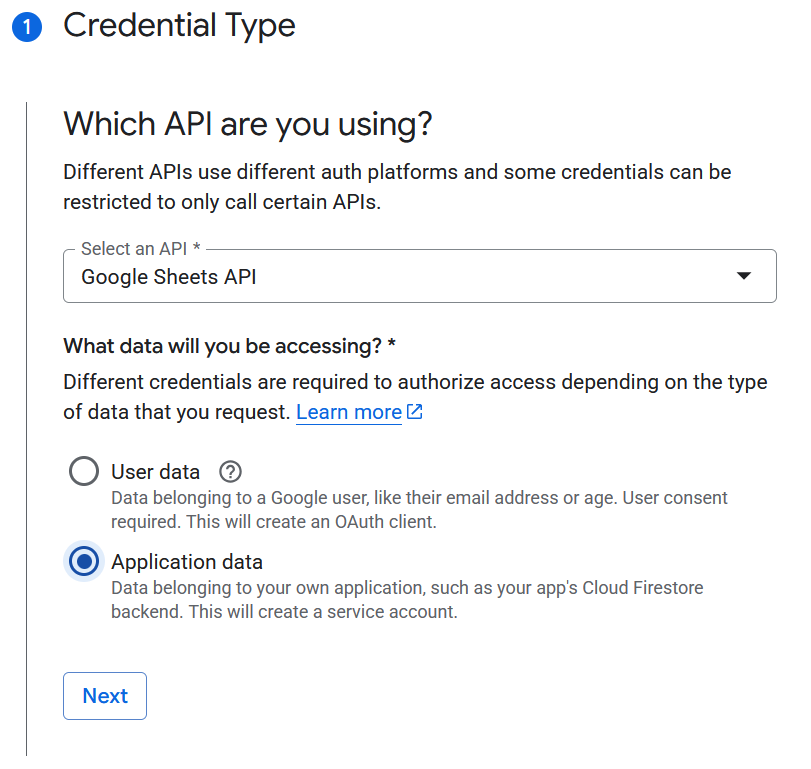
Select “Application Data” and continue.
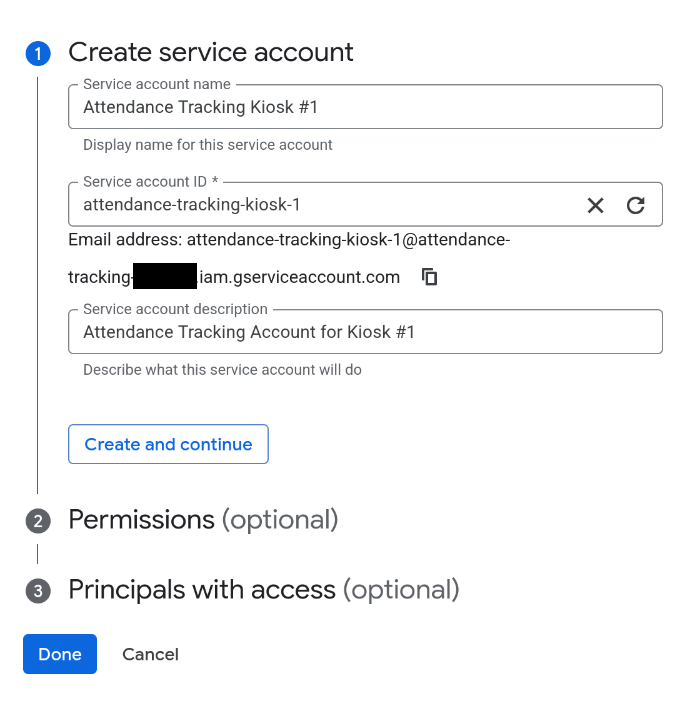
Create your service account. Add a name, ID, and description.
On the next screen in the “Select a role” dropdown type “editor” then select the Editor entry from the drop-down list then click “continue”, then finally “Done”.
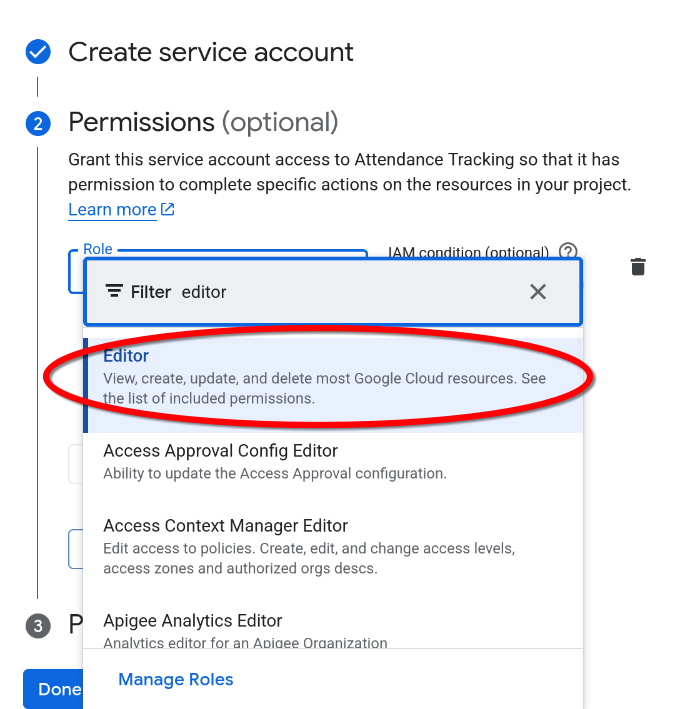
Click “Continue”.
Skip the “Principals with access” section, and click “Done”.
Creating the JSON Credentials for Second
Now we need to download the credentials we just created so click the “Credentials” tab in the middle of the window (NOT the Create Credentials we clicked earlier).
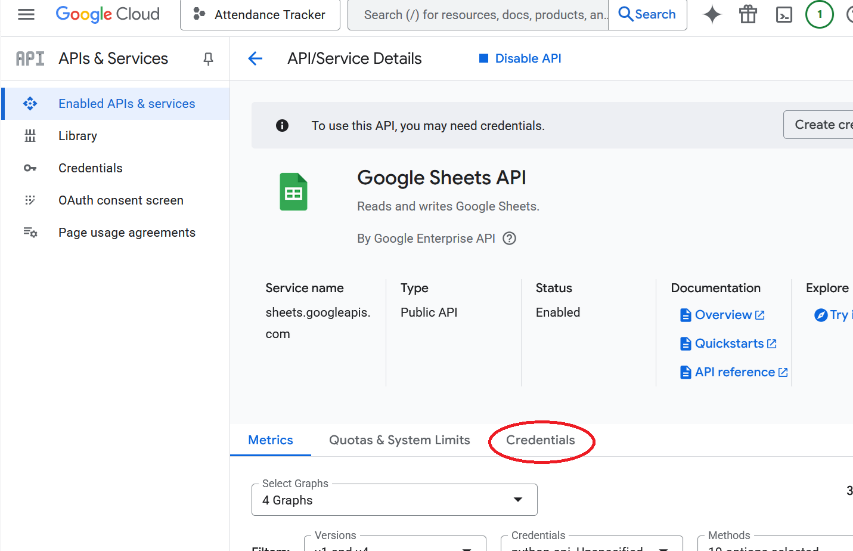
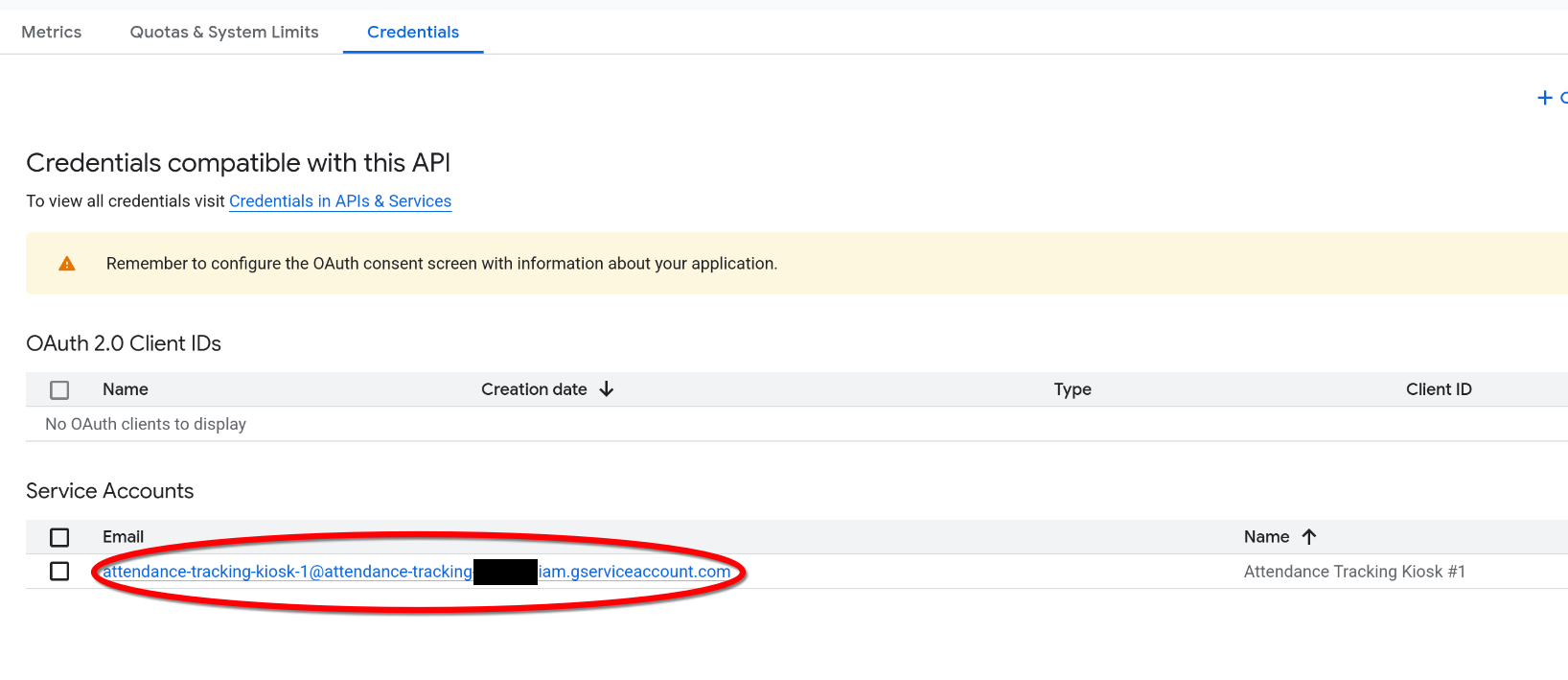
Select your service account’s email.
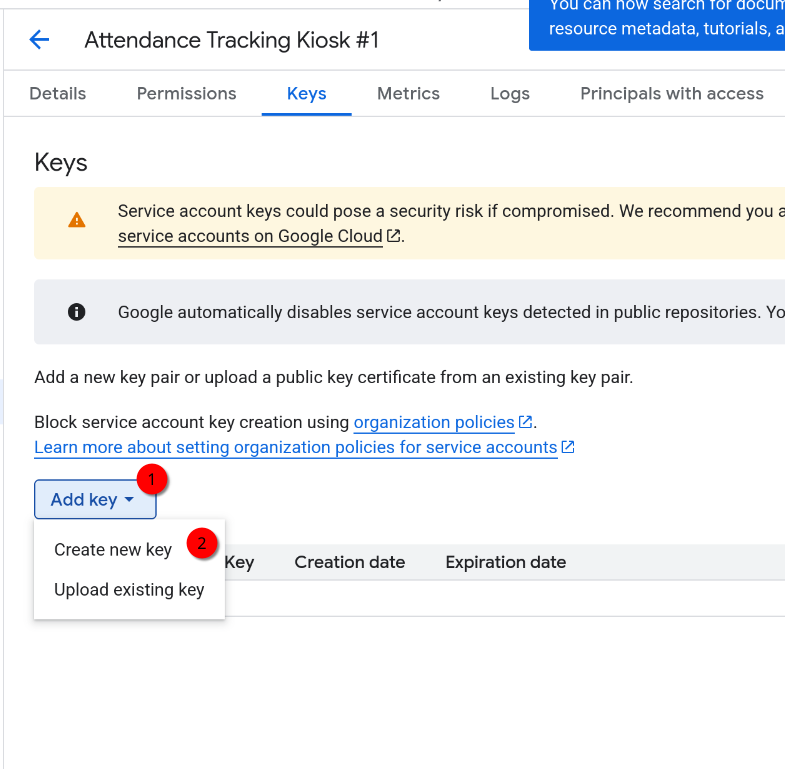
Go to the “Keys” tab.
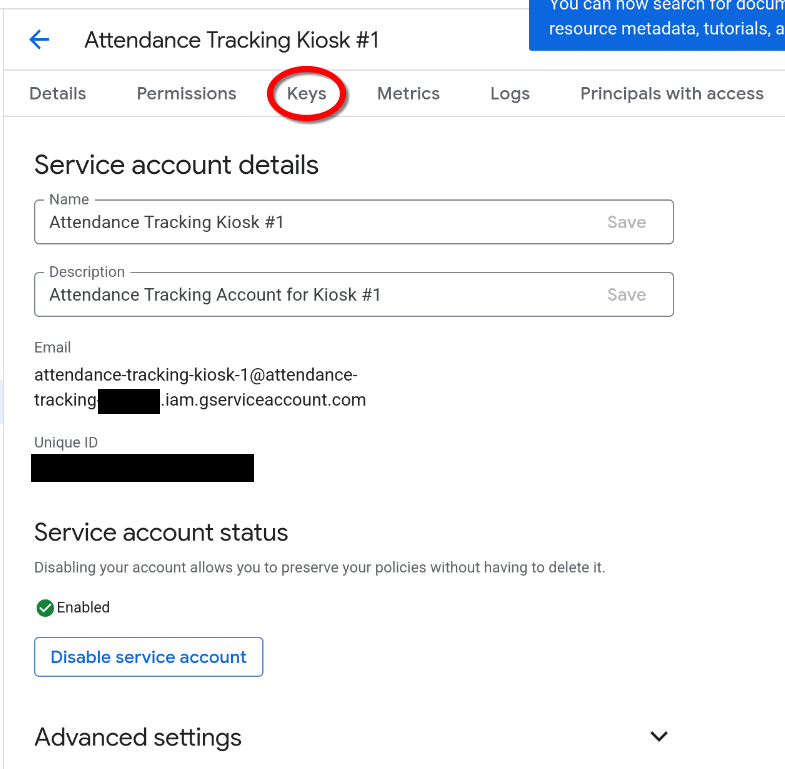
Select “Create new key” under the “Add key” drop-down.
Create a “JSON” private key.
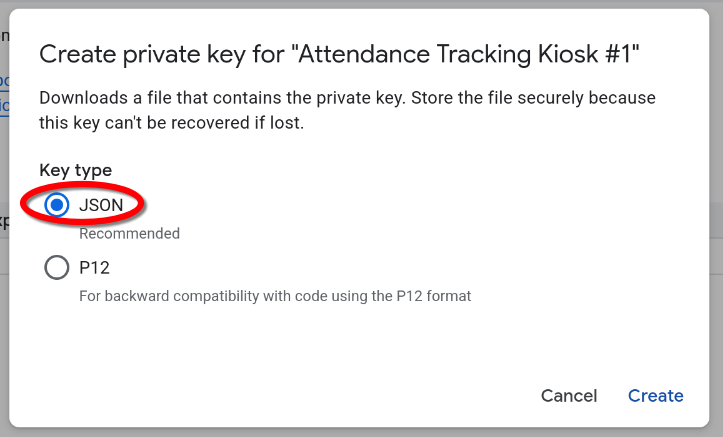
Once you click create, a JSON credential file will be downloaded. Save this file on to a USB drive that you can plug into your kiosk.
Next Steps
Now that you have your credentials file, it can be imported into Second.
Create the sheet that Second will use.